
Your website
Editing your site with ChatGPT
What you need
- A ChatGPT account. Whether you can add a custom MCP server depends on your plan. In a company workspace (Business, Enterprise, Edu) your administrator may have to allow it first.
- A login to your site's panel. See Your website in Bee CMS.
- The connector address. Your Project Leader sends it to you.
- A site on Bee CMS. If your site runs elsewhere, we can rebuild or migrate it first.
Connect ChatGPT to your site
Set it up once, in ChatGPT in your browser at chatgpt.com.
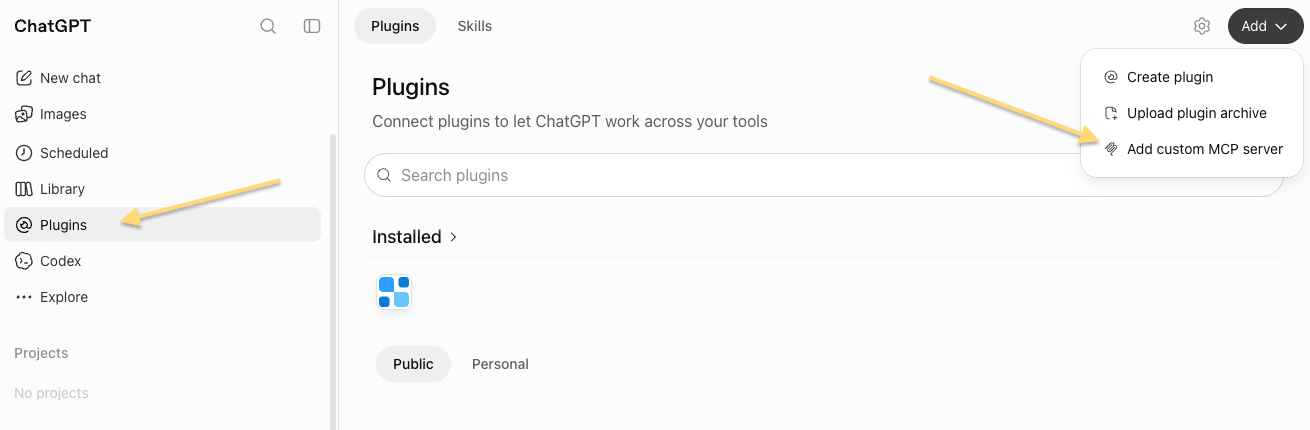
1. Open Plugins
Click Plugins in the left menu of ChatGPT. Then click Add in the top right corner and choose Add custom MCP server.
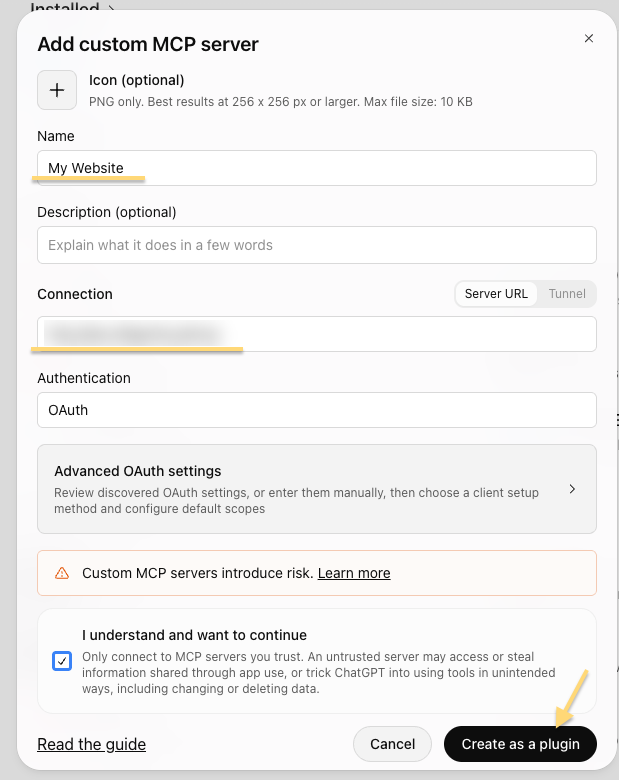
2. Enter a name and the address
Choose any name, for example the name of your site. Paste the address from your Project Leader under Connection and leave OAuth as the authentication. Tick I understand and want to continue and click Create as a plugin.
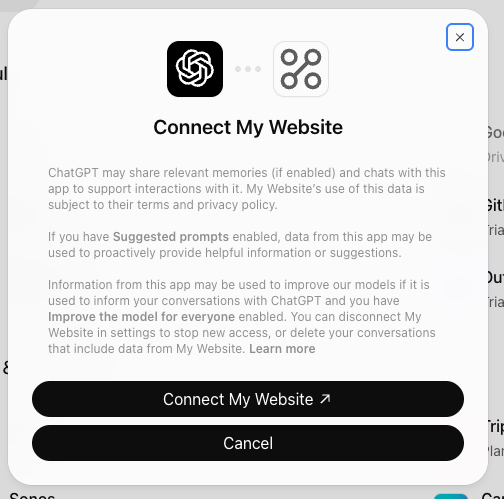
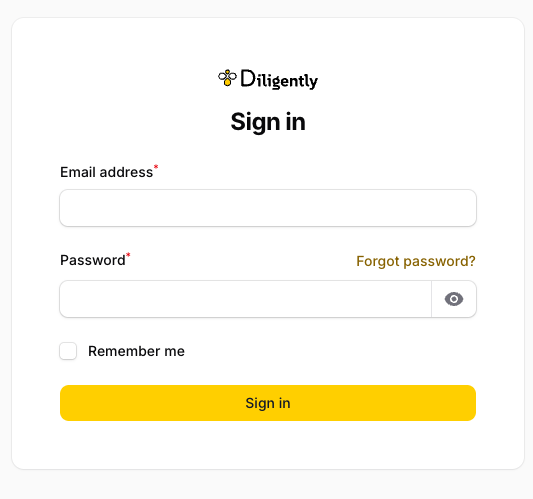
3. Connect and log in
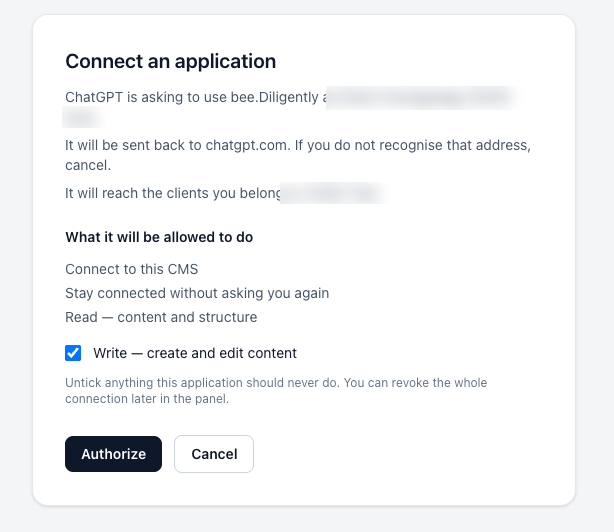
Click Connect followed by the name you chose. Log in with your panel account. On the Connect an application screen, leave Write ticked and click Authorize. ChatGPT sees only your own site.
4. Test it
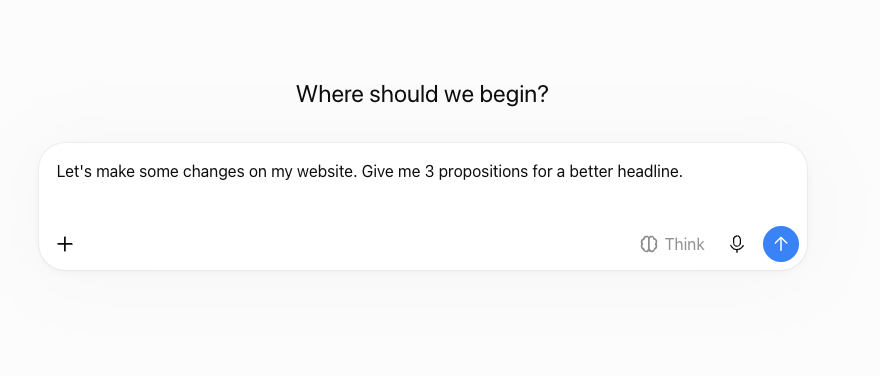
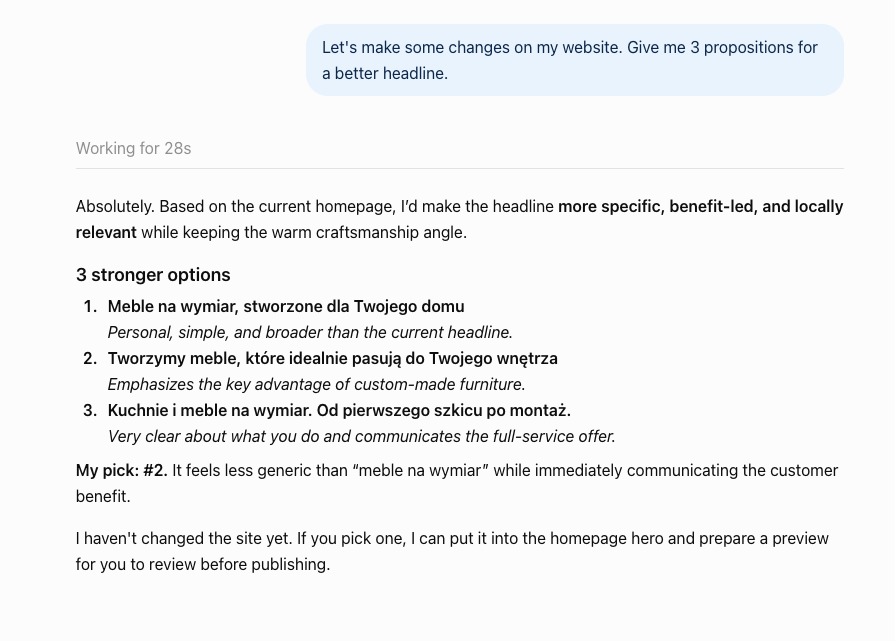
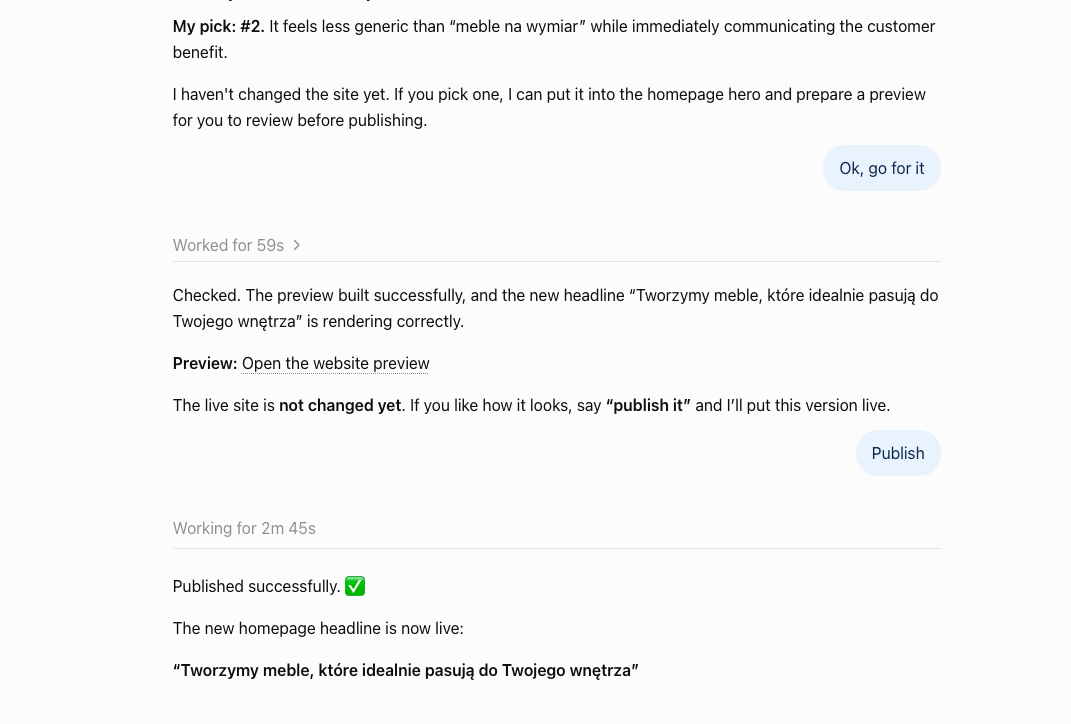
Open a new chat, check that your site's plugin is switched on, and ask for something, for example three proposals for a better headline. ChatGPT reads your site and answers. Nothing changes on the site until you ask for it.
When ChatGPT asks for permission
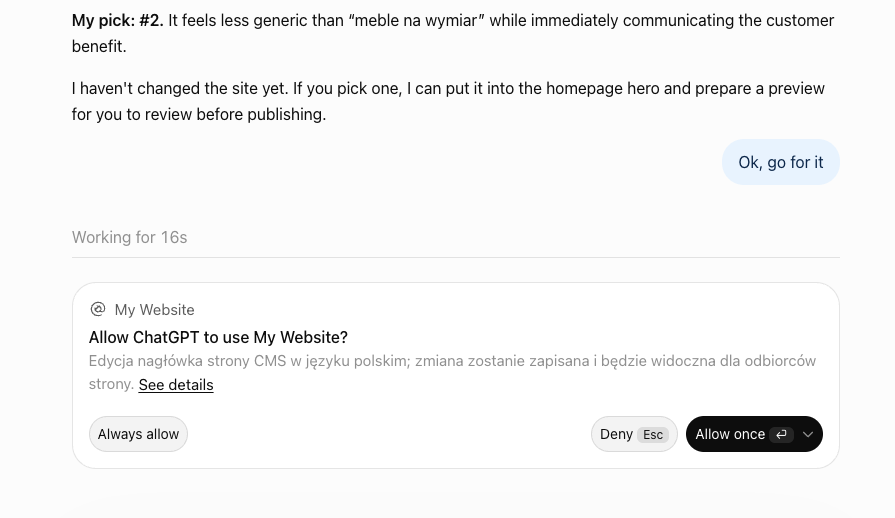
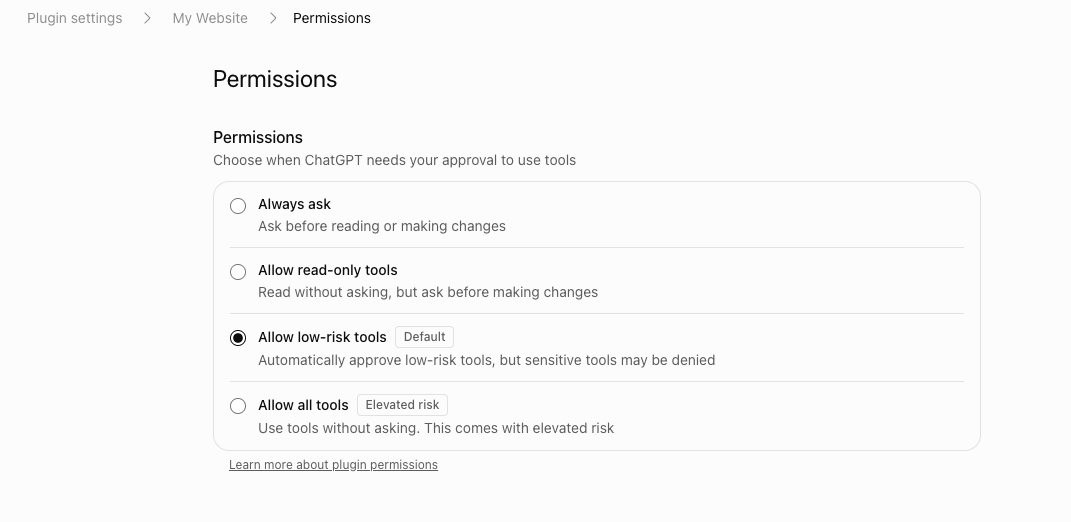
Before ChatGPT changes something, it can ask for your permission. Allow once approves this one change, Always allow stops the questions, and Deny rejects it.
You set how often ChatGPT asks under Plugins: open your site's plugin and go to Permissions. The default, Allow low-risk tools, works well. Whatever you choose, nothing goes live on your site until you write Publish.
What you can change yourself
No developer needed. Every change goes to a preview first.
- Texts and headingsOn any page, in any language.
- PricesPrice lists and plans.
- PhotosReplace or add images.
- Posts and newsWrite and publish new posts.
- Opening hoursRegular and holiday hours.
- New sectionsBuilt from the ready-made blocks.
- MenuAdd, rename or reorder links.
- Google descriptionsPage titles and descriptions for search results.
Preview, publish and undo
- Preview. Every change goes first to a separate preview address, hidden from search engines. Your visitors still see the current version.
- Publish. Nothing goes live until you write Publish. Publishing is enforced by the server, not by the AI.
- Fix or cancel. Not what you wanted? Write Fix… and say what to change, or Cancel to go back to the previous state.
- Undo. The last publish and the last code change can be reverted.
New features
You can also ask for something the site does not have yet: a new subpage, a calculator, a form, a new section layout or an integration. The AI writes the code following the rules we set for your site. Each change passes automated tests, and changes to configuration are always checked by our engineer.
You review the result on the preview. A new feature goes live only after you write I accept. Large features, such as a client login, take longer. To check the status, ask ChatGPT: "What changes are waiting for me?"
Good first changes
- Add a seasonal offer to the price list.
- Add a new person to the team page.
- Write a post about a new service.
- Replace the photo on the home page.
Questions
Do visitors see a change before I publish it?
No. The preview is a separate address. The live site does not change until you write Publish.
Who builds new features?
The AI, working under the rules we set for your site, with automated tests. Our engineer checks configuration changes, and you accept the result on the preview.
What does it cost?
It depends on your site and the scope of the changes. Ask your Key Account Manager for a quote.
Does it work with any website?
It works with sites on Bee CMS. If your site runs on another platform, we can rebuild or migrate it.
Support
Contact your Key Account Manager or Project Leader if a step is unclear. A short screen-sharing call is often the quickest way to complete it.